Entering Scores
PazGolf makes it easy to record your rounds. Let's follow Susan and Emma through a competition round to see how it all works.
Getting Ready to Play
Susan is playing with Emma this week. They've both entered the competition and are ready to play. Since only one person needs to enter the scores for the group, Susan will do it for both of them.
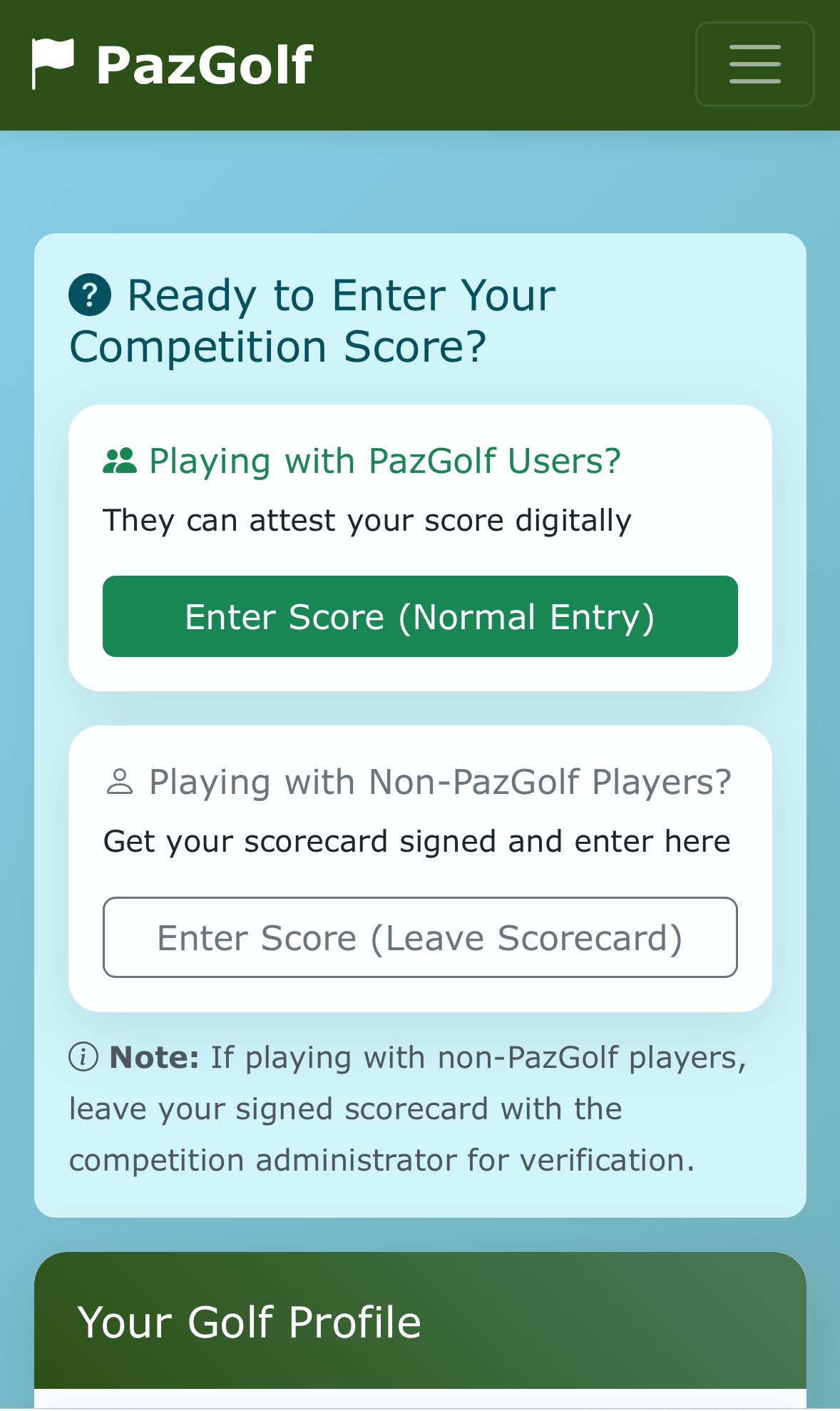
From her Dashboard, Susan sees a prompt asking how she'd like to enter her score.
Choosing Your Entry Method
Susan has two options:
Playing with PazGolf Users? - If Susan's playing partners are also PazGolf members, she chooses Enter Score (Normal Entry). After the round, her partners can digitally attest her score through the app - no paper needed.
Playing with Non-PazGolf Players? - If Susan is playing with guests or members who aren't on PazGolf, she chooses Enter Score (Leave Scorecard). She still enters her scores digitally, but since her playing partners can't attest through the app, she'll need to get a physical scorecard signed and leave it at the Pro Shop. The competition administrator can then verify the scores and update the attestation status in PazGolf.
Today Susan is playing with Emma, who's also a PazGolf member, so she taps Enter Score (Normal Entry).
The Digital Scorecard
Susan sees the digital scorecard with her competition details already filled in.
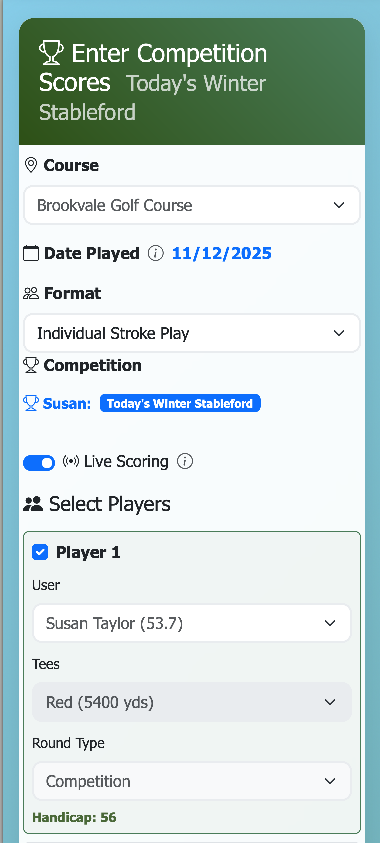
At the top, she can see:
- The competition name and course
- Today's date
- The format (Individual Stroke Play)
Player 1 is always the person who's logged in - so Susan sees her name with her competition entry already selected.
Adding a Playing Partner
Susan taps on Player 2 to add Emma to the scorecard.
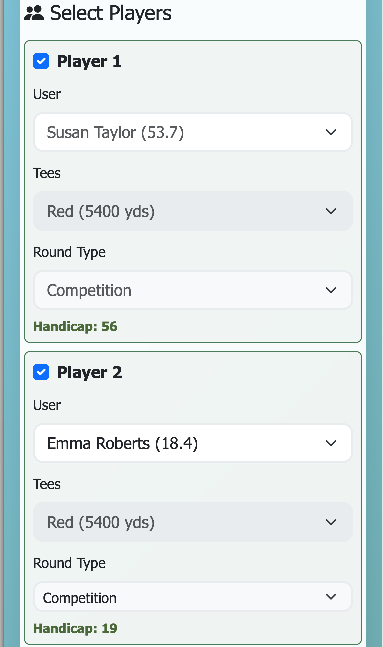
She selects Emma from the member list. Since Emma has also entered this competition, her details are pulled through automatically.
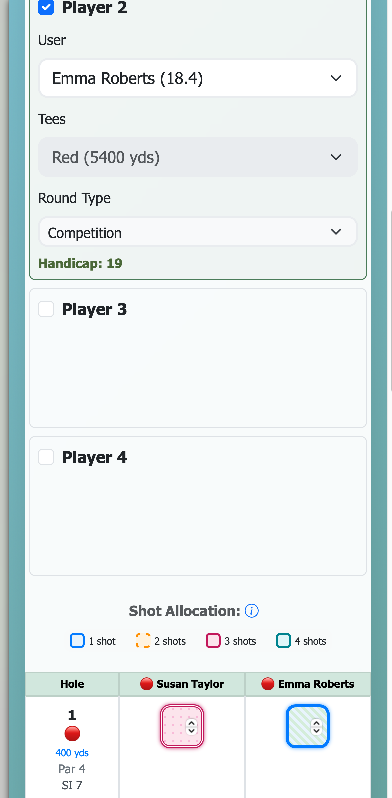
Now Susan can see both players ready to go:
- Susan - Red tees, Handicap 56
- Emma - Red tees, Handicap 19
You can have up to 4 players on a single scorecard.
Mixed Tees and Genders
PazGolf fully supports groups where players are on different tees. If James was playing with Susan and Emma, he might be on the Yellow tees while they're on the Red tees. No problem - each player's handicap is calculated for their own tee set.
A coloured circle beside each player's name shows their tee colour at a glance.
Sharing Scores in Real-Time
Before they start, Susan notices the Share scores with playing partners in real-time toggle.
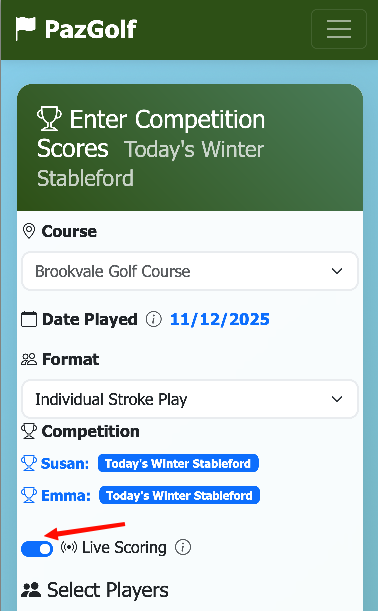
With this enabled, Emma can follow along on her own phone as Susan enters the scores.
Emma Joins the Live Session
Meanwhile, Emma opens PazGolf on her phone. She sees that Susan has started a live scoring session.
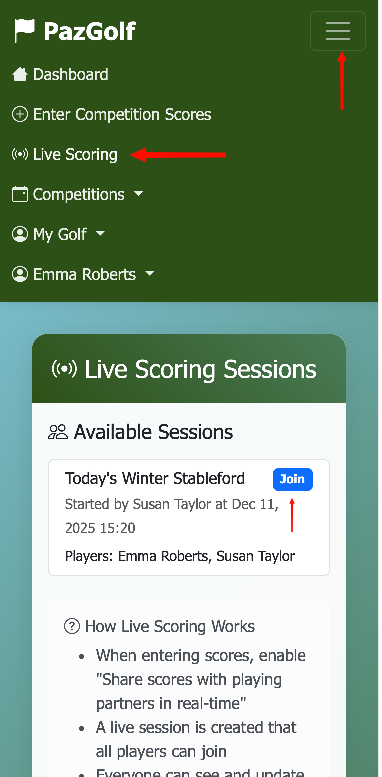
Emma taps Join Live Session and the scorecard appears on her screen.
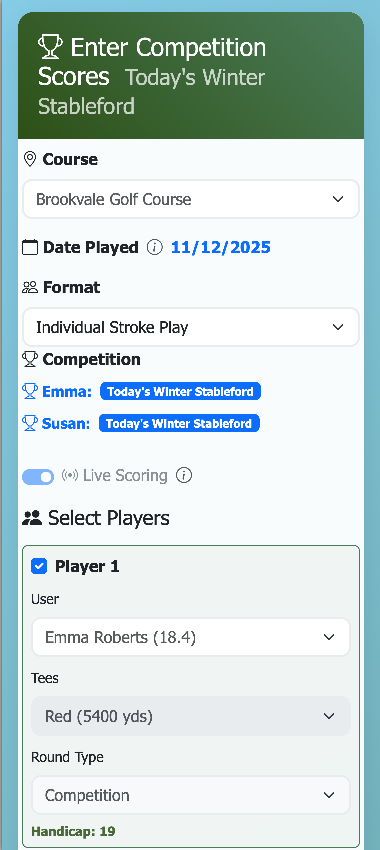
Notice that on Emma's phone, she appears as Player 1 - the scorecard always shows you first, making it easy to track your own progress. She can see both players' details and will see scores update in real-time as Susan enters them.
Now Emma won't need to look over Susan's shoulder to see how she's doing - she can follow along from her own phone.
Starting the Round
Susan and Emma head to the 1st tee. Susan scrolls down to see the scorecard grid.
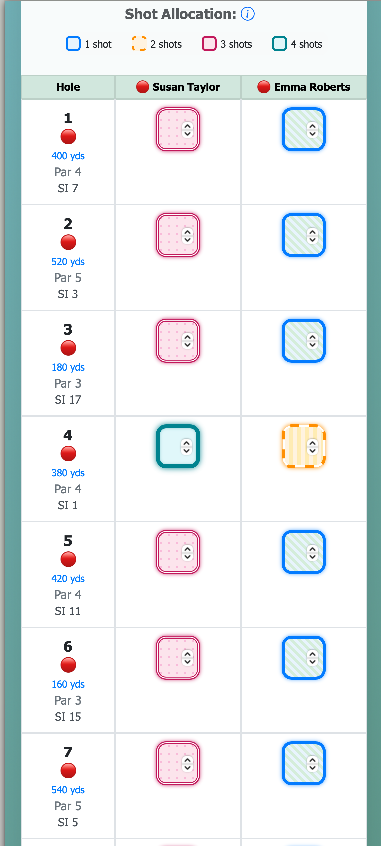
Each row shows:
- Hole number and name
- Distance and Par
- SI (Stroke Index) - determines which holes you get shots on
- Input boxes for each player's score
Understanding Shot Allocation
Notice the coloured highlighting on some holes? This shows where each player receives (or gives) handicap strokes.
| Legend | Meaning |
|---|---|
| Give 1 | Give 1 shot to the course (plus handicap players) |
| 1 shot | Receive 1 shot on this hole |
| 2 shots | Receive 2 shots on this hole |
| 3 shots | Receive 3 shots on this hole |
| 4 shots | Receive 4 shots on this hole |
Focus on the highlighted holes - these are where you can pick up valuable Stableford points. On holes where you receive 2+ shots, even a bogey can earn you points!
Entering Scores Hole by Hole
Susan and Emma finish the 1st hole. Susan enters their gross scores.
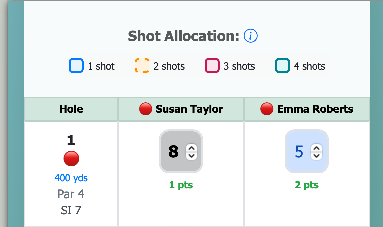
As soon as she enters each score, PazGolf instantly calculates the Stableford points. Susan shot 8 on the par 4 - with her 3 shots on this hole, that's a net bogey for 1 point. Emma shot 5 - with her 1 shot, that's a net par for 2 points.
Tip: When you enter a score, the cursor automatically moves to the next player. Once all players' scores are entered for a hole, it advances to the next hole - no extra tapping required.
The running totals update as they go. No mental arithmetic needed.
The Scoring Colours
As you enter each gross score, the cell changes colour to show how you played relative to par:
| Colour | Score |
|---|---|
| Eagle or better (2+ under par) | |
| Birdie (1 under par) | |
| Par | |
| Bogey (1 over par) | |
| Double bogey or worse (2+ over par) |
This gives you a quick visual sense of how the round is going.
Tip: If you pick up on a hole (don't complete it), just enter 0 as the score. PazGolf will record it as no score for that hole - you won't earn any Stableford points, but your round will still be valid.
Emma Checks Her Phone
A few holes in, Emma glances at her phone. Since she joined Susan's live session earlier, the scores are updating automatically.
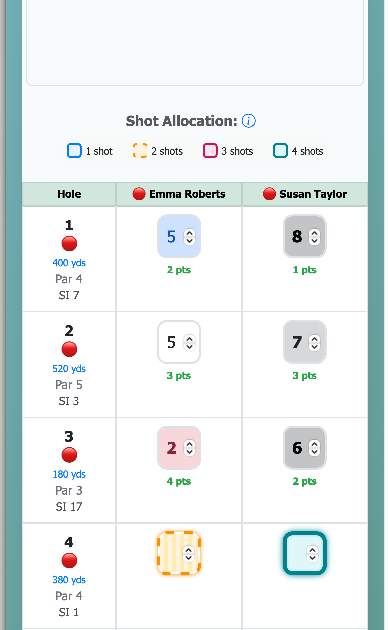
Emma can see both their scores appearing in real-time as Susan enters them. If Susan's battery dies mid-round, Emma can even continue entering scores from her phone - the session stays active.
Auto-Save Keeps You Safe
Your scores are automatically saved to your phone as you enter them. If you lose signal, close the app, or your phone runs out of battery:
- Your scores are stored locally
- Return to score entry to continue where you left off
- Nothing is lost until you explicitly clear them
Airplane Mode (Optional)
Once you've selected your players and tees, you'll see a "Ready for airplane" badge. If you want to play distraction-free:
- Put your phone into airplane mode before teeing off
- Enter scores as you play - Stableford points still calculate automatically
- When your round is complete, turn airplane mode off
- Tap Save Scores to submit
Just note that Live Scoring won't work in airplane mode - your playing partners won't see real-time updates until you're back online.
Finishing the Round
Susan and Emma have played all 18 holes. Susan scrolls down to review the totals.
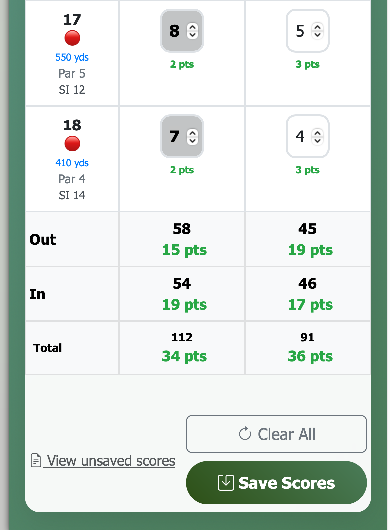
- Susan: 112 gross, 34 Stableford points (with a couple of pickups)
- Emma: 91 gross, 36 Stableford points
Susan taps Save Scores and sees the confirmation screen.
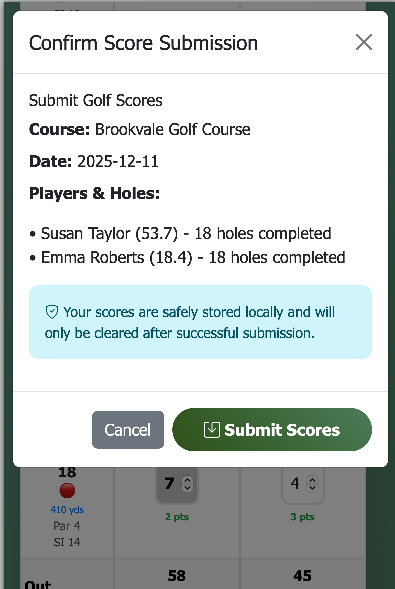
She checks the details are correct and taps Submit Scores. The scores are safely stored locally and will only be cleared after successful submission.
Attestation
In traditional golf, players swap physical scorecards on the first tee. Each player marks their partner's card throughout the round, then at the end they verify the scores together, make any corrections, and sign each other's cards as marker and player.
With PazGolf, the digital equivalent works like this: one player enters the scores during the round, both players verify before submission, and then each player attests the other's score afterwards. This digital attestation replaces the physical signature - it confirms "yes, I was there and these scores are correct."
Once the scores are submitted, both Susan and Emma return to their Dashboards and see a notification.
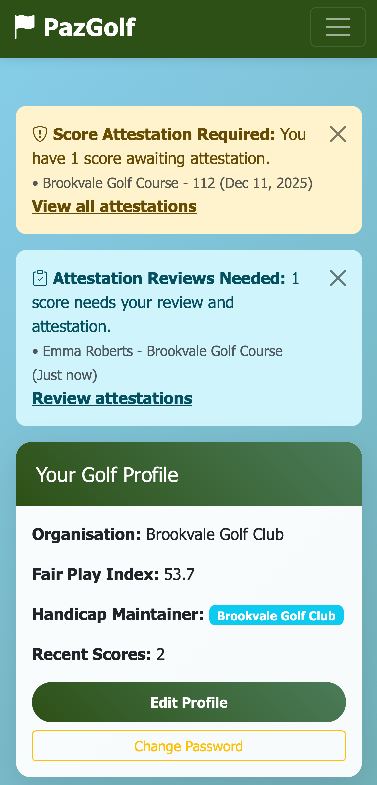
- Susan needs to verify Emma's score
- Emma needs to verify Susan's score
Susan taps Review attestations and sees the Score Attestations screen.
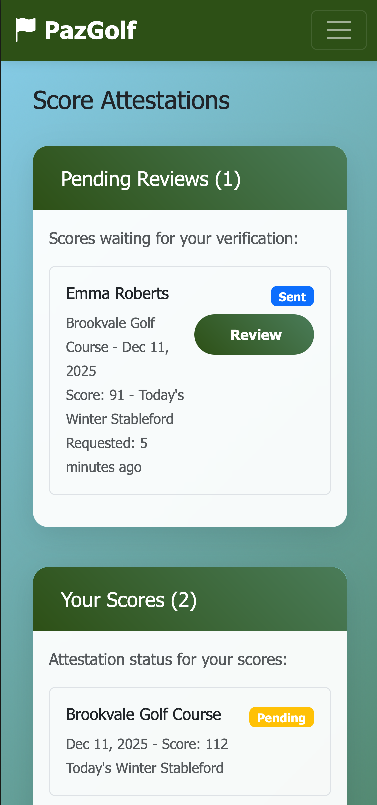
This shows all scores waiting for her verification. In a four-ball, there could be multiple scores to review here. Susan taps Review on Emma's score to see the details.
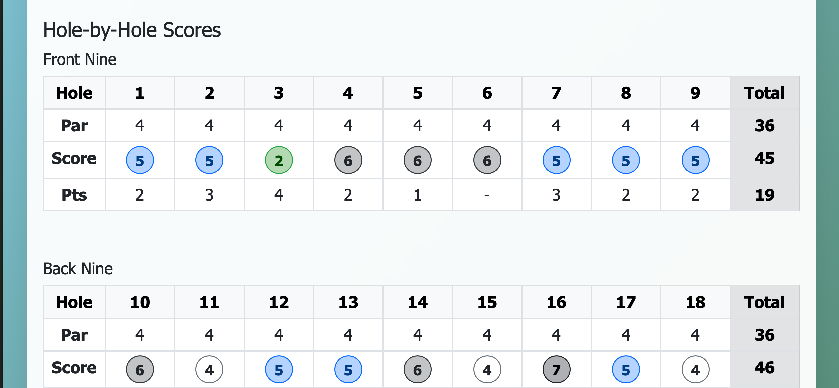
She can see Emma's hole-by-hole scores, gross total, and Stableford points.
Tip: Rotate your phone to landscape for a better view of all 18 holes at once.
Everything looks correct, so Susan taps Approve Score.
Email Notifications
Both players also receive an email requesting attestation. If Susan's busy after the round, she can approve Emma's score directly from the email link later - no need to open the app.
Once both players have attested each other's scores, the scores contribute to their Fair Play Index and appear on the competition leaderboard.
Competition Results
With scores entered and attested, Susan returns to her Dashboard. In the Active & Upcoming Competitions card, she can see the competition and taps Leaderboard.
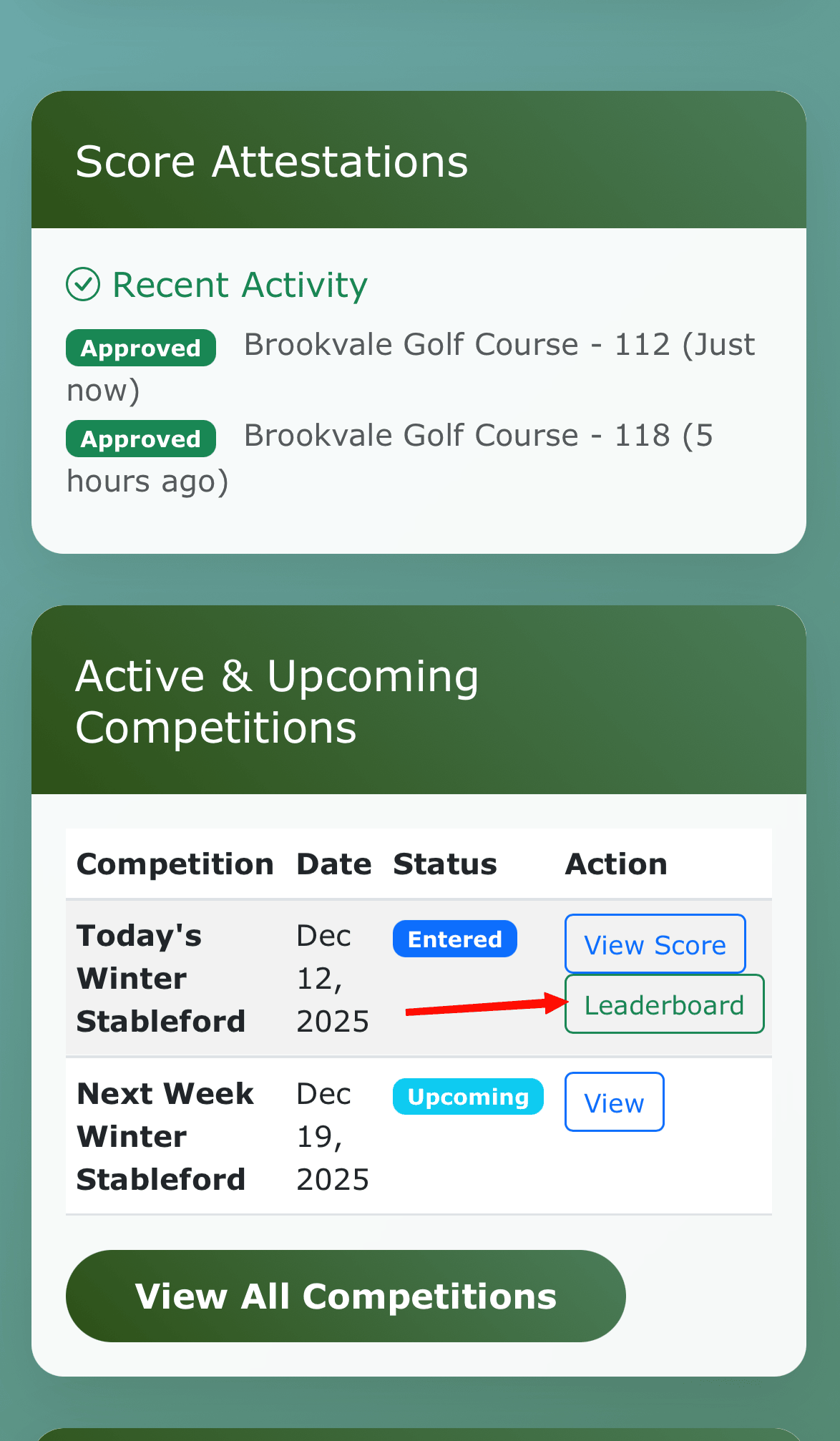
The leaderboard shows the current standings.
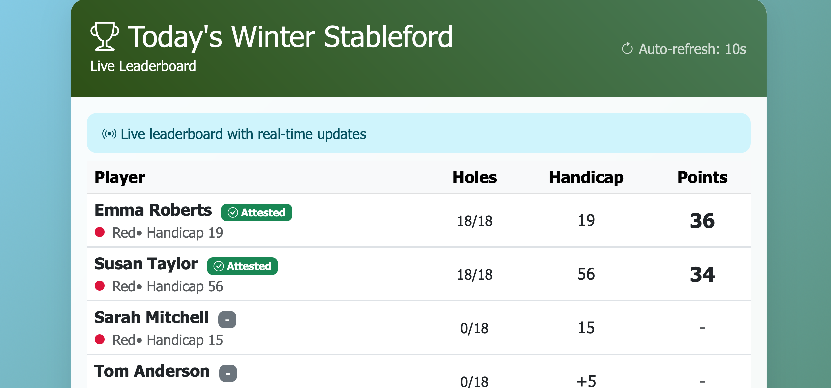
Emma's 36 points put her in the lead, with Susan close behind on 34 points. As more players submit their scores throughout the week, the leaderboard will update in real-time.
Types of Rounds
Not all rounds are competition rounds. When you're not playing in a competition, you can choose your round type:
| Round Type | Counts for FPI | When to Use |
|---|---|---|
| Competition | Yes | Official competition rounds (selected automatically) |
| General Play | Yes | Regular rounds that count towards your handicap |
| Casual | No | Practice rounds that don't affect your FPI |
Picked Up a Hole?
If you pick up on a hole (don't complete it), enter 0 for that hole. PazGolf will handle the scoring appropriately.
Troubleshooting
My score isn't saving Check your internet connection and try refreshing. Your data is auto-saved locally, so you won't lose anything.
I can't find my course Search by course name. If it's not there, your club administrator may need to add it.
My handicap didn't update Only Competition and General Play rounds affect your FPI. There may also be a short delay while calculations complete.
Next: My Scores - Viewing your score history and tracking your Fair Play Index